Showing posts with label admin role. Show all posts

Tuesday, August 25, 2020

Show Sitemap Sub areas based on Security Roles

 I came across a requirement where we had to show the Sitemap certain areas only to the Application Admins and hide it from the Users.

Yes it can be configured by removing entity privileges for the User Security role but there were dependencies on the entity as it was a lookup.

So removing the security privilege will also take away the permissions to append and view.

So to just show the entities on Sitemap only to Admins not for other Users we have used the functionality of Sitemap editor where without any code it can achieved using Privileges Feature.

Let us consider a scenario where User A is Sales Person and User B is Sales Admin.

I should Hide the Accounts  for User A i.e Sales Person but she should be able to select Account while creating a Contact and Read it too.


Step 1 : Go to Sitemap Editor and of Application and select that entity.


Step 2 : Click on Properties and scroll down towards Advanced > Privileges


Step 3 : Now Sales Admin has privileges on Account to Create, Write or Delete but Sales User does not has. He has only Read Permission. So select the ones which Admins have.


Step 4: Now this Account in Sitemap will be visible only to the Sales Admin not for Sales User as we have configured the Privileges. Publish the changes.


This will enable to hide entity on Sitemap without effecting functionality based on Security Roles.

Things to Remember :

1. If you add Account entity in any other group and do not configure this Privilege Setting, it will be visible due to Read permissions.

2. Even different entities and combinations can be configured to hide or show based on Organization needs.



Sunday, December 9, 2018

Hide Out of box Delete Button in CRM

The visibility of Ribbon buttons are controlled by its associated command. Commands of these Buttons can be used to control the rules.
Using the Ribbon Workbench, it is easy to customize an 'Out of the Box' command and add a Display Rule  or Enable rule.

The answer to hide a Delete button based on any condition like user roles can be done as follows.

  1.  Load the custom entity of the button into the Ribbon Workbench.
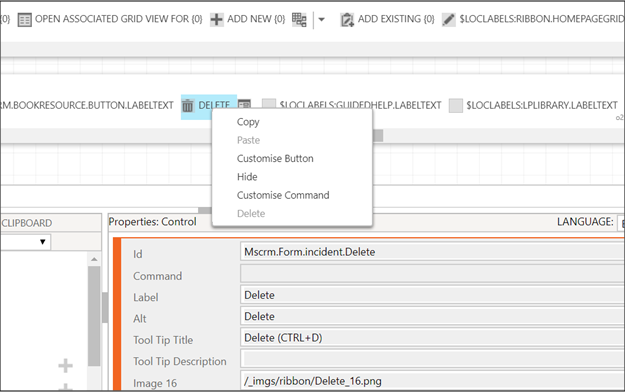
  2. Select the button you want to modify. For example I have taken a DELETE button.


  3. Right click on button and select the “Customise Button” option.
  4. Notice a command is created for the button as Mscrm.DeletePrimaryRecord.
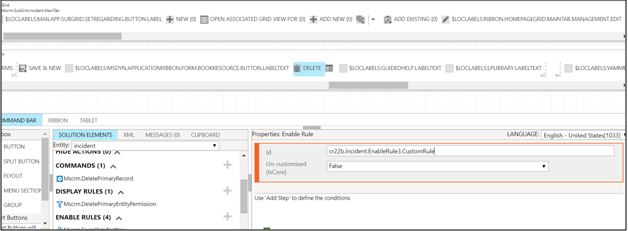
  5. Select that command and click on Add Enable Rule.
  6. In the Add Step select Custom rule for javascript control. Use this kind of rule to call a function in a JavaScript Library that returns a Boolean value.
  7.  Note:
    Custom rules that do not return a value quickly can affect the performance of the ribbon. If you have to perform logic that might take some time to complete, use the following strategy to make your custom rule asynchronous:
    ·         Define a rule that checks for a custom object. You might check for an object such as Window.ContosoCustomObject.RuleIsTrue that you just attach to the Window.
    ·         If that object exists, return it.
    ·         If that object does not exist, define the object and set the value as false.
    ·         Before you return a value, use settimeout to execute an asynchronous callback function to re-set the object. Then return false.
    ·         After the callback function has performed the operations that are required to determine the correct result, it sets the value of the object and uses the refreshRibbon method to refresh the ribbon.
    ·         When the ribbon is refreshed, it detects the object together with the accurate value set and the rule is evaluated.
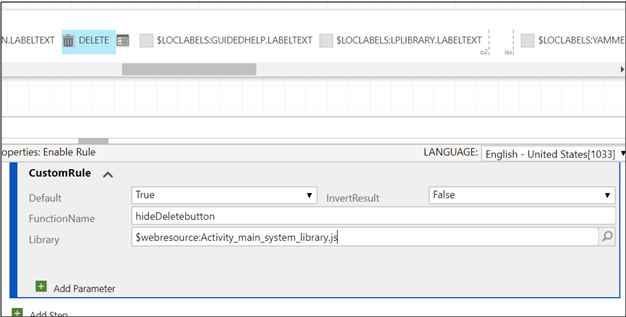
  8. Give the function name and javascript webresource which evaluates your condition like checks Admin role  to show or hide the button and returns a Boolean value.
  9. When the function returns true the button will be visible on the form else hidden. Below is the code to check whether user is Administrator and returns a Boolean value.

//Javascript code
var roleNameArray = new Array();
var isAdmin= false;
function checkUserRole() {


var currentUserRoles = Xrm.Page.context.getUserRoles();

for (var i = 0; i<currentUserRoles.length; i++) {
var userRoleId = currentUserRoles[i];
getRoleName(userRoleId);

    }

if (roleNameArray.indexOf("System Administrator") > -1)
return true;
else
return false;
}
function getRoleName(userRoleId) {

var query = "name";
SDK.WEBAPI.retrieveRecord(userRoleId, "role", query, null, setRoleBasedSecurity, errorCallback);
}

function setRoleBasedSecurity(data) {

roleNameArray.push(data.name)
}
function hideDeletebn() {
isAdmin = checkUserRole();
return isAdmin;
}


Save and publish the Ribbon work bench.This will hide the Delete button for the users who doesn’t have Admin role.☺️


Show Sitemap Sub areas based on Security Roles

 I came across a requirement where we had to show the Sitemap certain areas only to the Application Admins and hide it from the Users. Yes i...